Wildfly en ubuntu 14
Para que funcione el j boss 12 o wildfly es necesario tener java en su version 1,8 y maven en su version 3,0
Para instalar java 1,8
sudo add-apt-repository ppa:webupd8team/java
sudo apt-get update
sudo apt-get install oracle-java8-installer
si no funciona
sudo apt-get install oracle-java8-set-default
para comprobar la version se emplea el comando:
java -version
java version "1.8.0_161"
Java(TM) SE Runtime Environment (build
1.8.0_161-b12)
Java HotSpot(TM) 64-Bit Server VM (build
25.161-b12, mixed mode)
fuente: https://tecadmin.net/install-oracle-java-8-ubuntu-via-ppa/
Para instalar maven 3
sudo apt-get install maven
para comprobar la version:
:/home/fabian# mvn -version
Apache Maven 3.0.5
Maven home: /usr/share/maven
Java version: 1.8.0_161, vendor: Oracle
Corporation
Java home: /usr/lib/jvm/java-8-oracle/jre
Default locale: es_CO, platform encoding: UTF-8
OS name: "linux", version:
"3.13.0-85-generic", arch: "amd64", family:
"unix"
fuente: https://www.mkyong.com/maven/how-to-install-maven-in-ubuntu/
_________________________________________________________________
Para el funcionamiento del wildfly es necesario descargar la ultima versión en mi caso la 12,0 y descomprimirla.
Ingresar desde consola al directorio bin del directorio descomprimido y ejecutar el comando:
sh standalone.sh
por defecto el servidor empezará a ejecutarse en el puerto 8080. Para ejecutarlo desde el navegador se ingresa a la url: localhost:8080
Es necesario inicialmente crear un usuario
administrativo, esto es necesario desarrollarlo desde la consola. Ubicados en el mismo directorio ejecutar las siguientes instrucciones:
sh add-user.sh
What type of user do you wish to add?
a) Management User (mgmt-users.properties)
 b) Application User
(application-users.properties)
(a): a
Enter the details of the new user to add.
Using realm 'ManagementRealm' as discovered from
the existing property files.
Username : root
The username 'root' is easy to guess
Are you sure you want to add user 'root' yes/no?
yes
Password recommendations are listed below. To
modify these restrictions edit the add-user.properties configuration
file.
 - The password should be different from the
username
 - The password should not be one of the
following restricted values {root, admin, administrator}
 - The password should contain at least 8
characters, 1 alphabetic character(s), 1 digit(s), 1 non-alphanumeric
symbol(s)
Password :
WFLYDM0099: Password should have at least 8
characters!
Are you sure you want to use the password
entered yes/no? yes
Re-enter Password :
What groups do you want this user to belong to?
(Please enter a comma separated list, or leave blank for none)[  ]:
About to add user 'root' for realm
'ManagementRealm'
Is this correct yes/no? yes
Added user 'root' to file
'/home/fabian/Escritorio/Redhat 7_4 y jboss
7_1_1/wildfly-12.0.0.Final/standalone/configuration/mgmt-users.properties'
Added user 'root' to file
'/home/fabian/Escritorio/Redhat 7_4 y jboss
7_1_1/wildfly-12.0.0.Final/domain/configuration/mgmt-users.properties'
Added user 'root' with groups  to file
'/home/fabian/Escritorio/Redhat 7_4 y jboss
7_1_1/wildfly-12.0.0.Final/standalone/configuration/mgmt-groups.properties'
Added user 'root' with groups  to file
'/home/fabian/Escritorio/Redhat 7_4 y jboss
7_1_1/wildfly-12.0.0.Final/domain/configuration/mgmt-groups.properties'
Is this new user going to be used for one AS
process to connect to another AS process?
e.g. for a slave host controller connecting to
the master or for a Remoting connection for server to server EJB
calls.
yes/no? No
Para desplegar la aplicación solo hace falta copiar el .war en la carpeta standalone/deployments
se puede verificar ingresando al administrador
http://localhost:9990
para cambiar los puertos se edita el fichero:
/standalone/configuration$sudo nano
standalone.xml
para que funcine las aplicaciones desplegadas en
la red se ejecuta el siguiente comando:
sh standalone.sh -b 0.0.0.0
Para poder administrar de forma remota, en el mismo archivo de configuración standalone.xml se edita la dirección de administración a 0.0.0.0

Para que funcione como un servicio
cp /opt/wildfly/docs/contrib/scripts/init.d/wildfly-init-debian.sh /etc/init.d/wildfly
update-rc.d wildfly defaults
cp /opt/wildfly/docs/contrib/scripts/init.d/wildfly.conf /etc/default/wildfly
nano /etc/default/wildfly/wildfly.conf
Quitar comentario a las siguientes lineas
JBOSS_HOME="/opt/wildfly"
JBOSS_USER=wildfly
JBOSS_MODE=standalone
JBOSS_CONFIG=standalone.xml
SHUTDOWN_WAIT=60
JBOSS_CONSOLE_LOG="/var/log/wildfly/console.log"
mkdir -p /var/log/wildfly; adduser --system --no-create-home --group wildfly
chown -R wildfly:wildfly /opt/wildfly; chown -R wildfly:wildfly /opt/wildfly; chown -R wildfly:wildfly /var/log/wildfly
service wildfly start
service wildfly status
Para deshabilitar el servicio automático basta con renombrar el nombre del servicio así:
sudo mv /etc/init.d/wildfly /etc/init.d/wildfly_old
Fuente: https://www.youtube.com/watch?v=ru2_dTbC4dk
Fuente : https://community.i2b2.org/wiki/display/getstarted/2.4.2.3+Run+Wildfly+as+a+Linux+Service
Para que funcione como un servicio en Ubuntu 20
Para que funcione, antes de empezar se recomienda cambiar el nombre de la directorio por /opt/wildfly/. Se puede hacer el procedimiento sin ser usuario root.
$ cd /etc/
$ sudo mkdir wildfly
$ sudo cp /opt/wildfly/docs/contrib/scripts/systemd/wildfly.conf /etc/wildfly/
$ sudo cp /opt/wildfly/docs/contrib/scripts/systemd/launch.sh /opt/wildfly/bin/
$ sudo cp /opt/wildfly/docs/contrib/scripts/systemd/wildfly.service /etc/systemd/system/
$ sudo nano /etc/systemd/system/wildfly.service
[Unit]Description=The WildFly Application Server After=syslog.target network.target Before=httpd.service[Service]Environment=LAUNCH_JBOSS_IN_BACKGROUND=1 EnvironmentFile=-/etc/wildfly/wildfly.conf User=root LimitNOFILE=102642 PIDFile=/var/run/wildfly/wildfly.pid ExecStart=/opt/wildfly/bin/launch.sh $WILDFLY_MODE $WILDFLY_CONFIG $WILDFLY_BIND StandardOutput=null[Install]WantedBy=multi-user.target$ sudo systemctl daemon-reload $ sudo systemctl enable wildfly $ sudo systemctl start wildfly $ sudo systemctl status wildfly
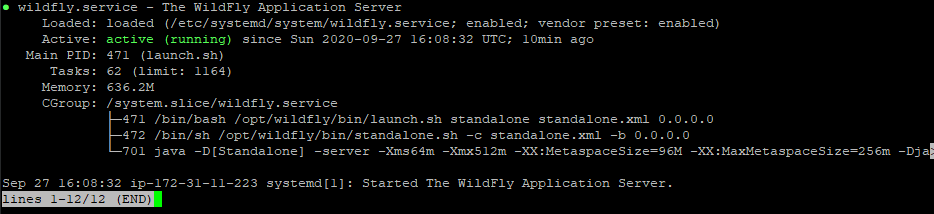
Fuente: https://medium.com/@hasnat.saeed/install-jboss-wildfly-on-ubuntu-18-04-ac00719a2f02
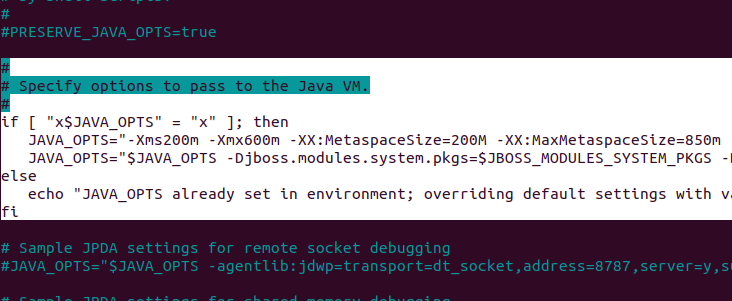
Para configurar los parametros de Java
$ cd /opt/wildfly/bin
$ nano standalone.conf